Connect Msty Studio to Browser.lol
Let Msty Studio open and use websites in a Browser.lol cloud browser. You watch live and take over whenever it needs you.
Add the server to your client
Connect Msty Studio
Install a current version of Msty Studio and choose a model that supports tool use.
1. Create an API key
Open the dashboard to create a key and get a ready-to-copy configuration.
Create a key in the dashboard2. Add the connection
In Toolbox › Tools, choose Add New Tool › HTTP. Enter the name and URL below. Add the Authorization header under Authentication/Headers, then save with Add.
ToolboxToolsAdd New ToolHTTP
Copy each value into the matching field.
- MCP server URL
https://api.browser.lol/mcp- Name
browserlol- Transport / connection type
- HTTP
- Add this request header
- Create a key to copy this value
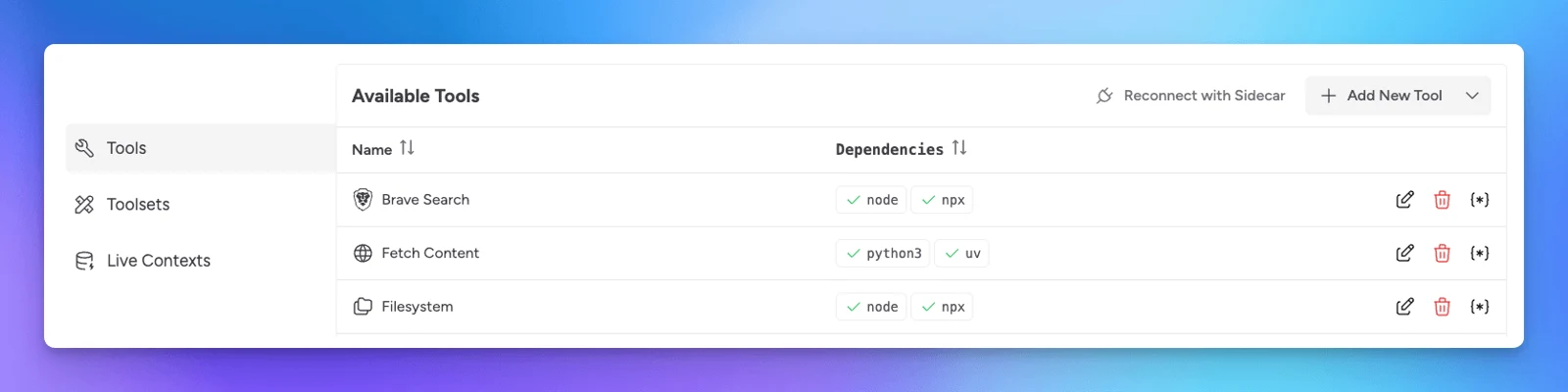
Official example. Use your values above; the example may show a different server or interface version. Screenshot source 3. Try it in a new chat
Add browserlol to the toolset you use in the chat, then send the task below.
ToolboxTools
Open example.com in a Browser.lol session and tell me what the page says.
Automation tools, your own code and clients without sign-in use an API key in a header instead. The AI agents page creates one for the client you choose; give each client or machine its own key so you can revoke access separately.
Open Agents