Connect Continue to Browser.lol
Let Continue open and use websites in a Browser.lol cloud browser. You watch live and take over whenever it needs you.
Add the server to your client
Connect Continue
Install the Continue extension in VS Code or a JetBrains IDE. MCP tools only work in Agent mode.
1. Create an API key
Open the dashboard to create a key and get a ready-to-copy configuration.
Create a key in the dashboard2. Add the connection
Create a YAML file in .continue/mcpServers in your project and add the complete configuration below. The Authorization header belongs under requestOptions.headers. Switch the chat to Agent mode.
.continue/mcpServers/browser.yaml
Add the entry below. Keep any other servers already in the file.
Create a key to copy this value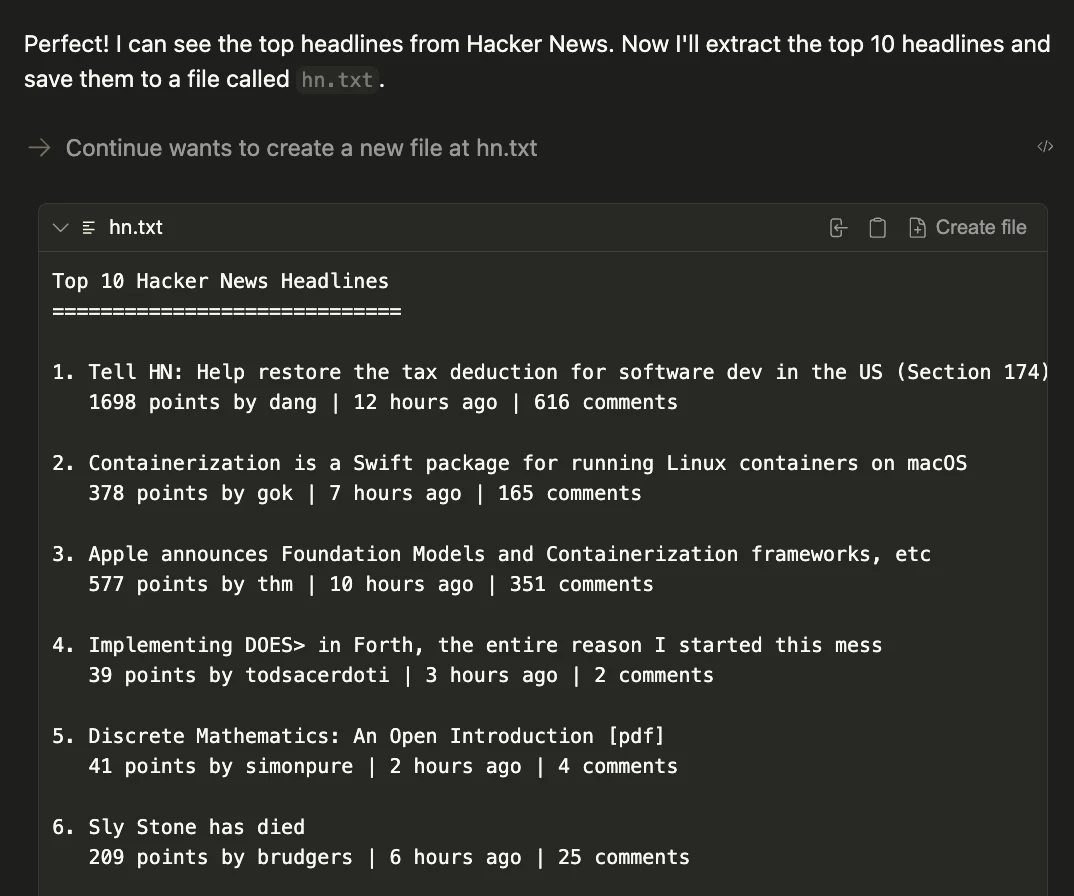
Official example. Use your values above; the example may show a different server or interface version. Screenshot source 3. Try it in a new chat
Check in Continue's settings that browserlol is connected. Switch the chat to Agent mode and send the task below.
Agent
Open example.com in a Browser.lol session and tell me what the page says.
Automation tools, your own code and clients without sign-in use an API key in a header instead. The AI agents page creates one for the client you choose; give each client or machine its own key so you can revoke access separately.
Open Agents