Connect Visual Studio to Browser.lol
Let Visual Studio open and use websites in a Browser.lol cloud browser. You watch live and take over whenever it needs you.
Add the server to your client
Connect Visual Studio
Use Visual Studio 2026 or Visual Studio 2022 version 17.14 or later with GitHub Copilot.
1. Add the connection
Add this to .mcp.json in your user folder (%USERPROFILE%\.mcp.json) and save. If the file already lists servers, add only the browserlol entry.
%USERPROFILE%\.mcp.json
Add the entry below. Keep any other servers already in the file.
{
  "servers": {
    "browserlol": {
      "url": "https://api.browser.lol/mcp"
    }
  }
}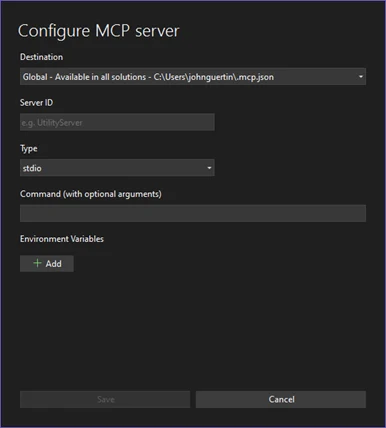
Official example. Use your values above; the example may show a different server or interface version. Screenshot source 2. Sign in and allow access
In the file, click Authentication Required in the CodeLens above browserlol, choose Authenticate and sign in on the Browser.lol page that opens.
Authentication Required
3. Try it in a new chat
In the Copilot Chat pane, switch to Agent mode, open Tools and turn on the browserlol tools, which start disabled. Then send the task below and allow the tools when asked.
GitHub Copilot ChatAgent
Open example.com in a Browser.lol session and tell me what the page says.
Automation tools, your own code and clients without sign-in use an API key in a header instead. The AI agents page creates one for the client you choose; give each client or machine its own key so you can revoke access separately.
Open Agents