Connect LM Studio to Browser.lol
Let LM Studio open and use websites in a Browser.lol cloud browser. You watch live and take over whenever it needs you.
Add the server to your client
Connect LM Studio
Install the current LM Studio release and load a model that can use tools.
1. Add the connection
Use the one-click install link, or open the Program tab in the right sidebar, choose Install › Edit mcp.json and add this. If the file already lists MCP servers, add only the browserlol entry.
ProgramInstallEdit mcp.json
Add the entry below. Keep any other servers already in the file.
{
  "mcpServers": {
    "browserlol": {
      "url": "https://api.browser.lol/mcp"
    }
  }
}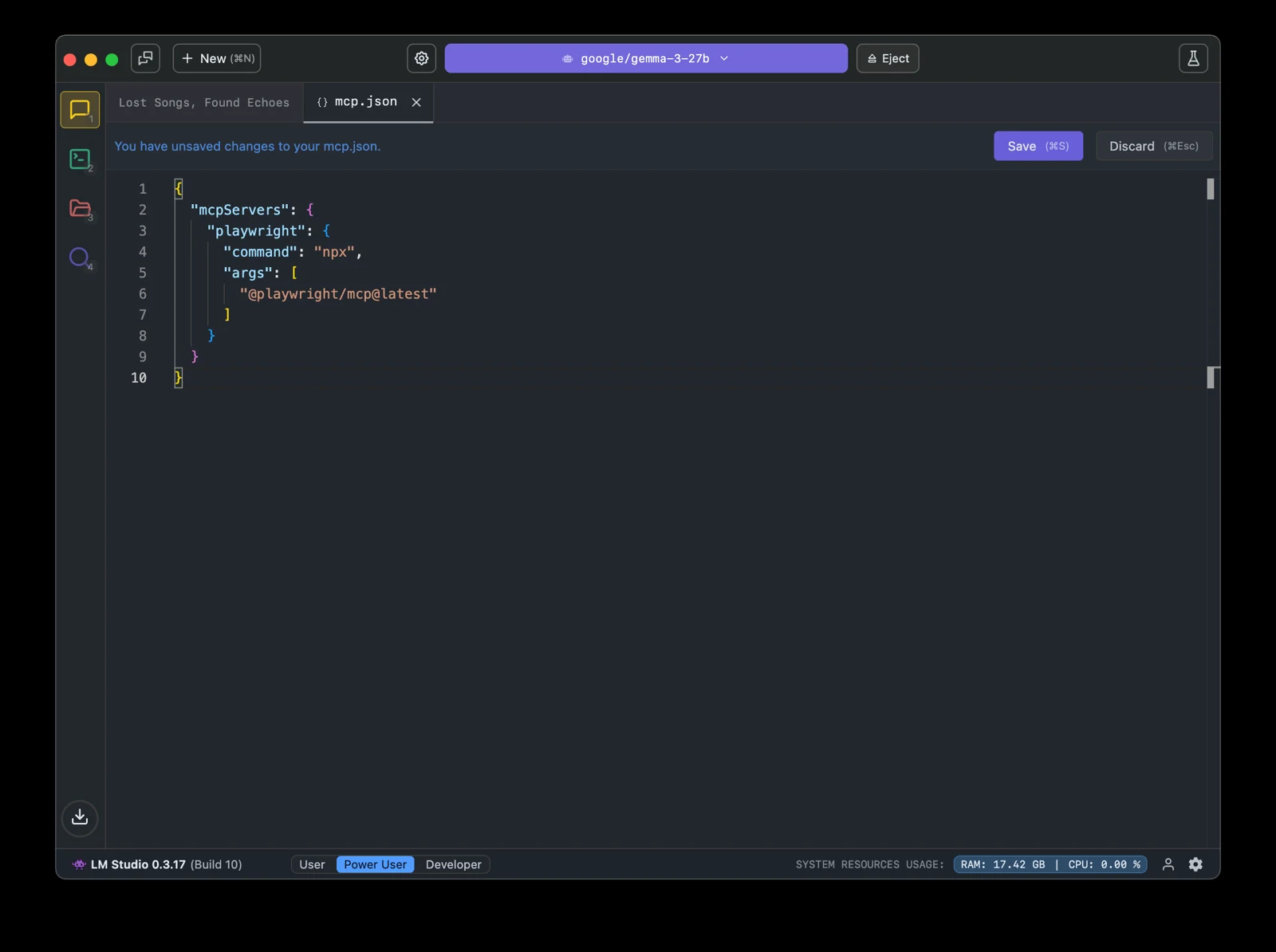
Official example. Use your values above; the example may show a different server or interface version. Screenshot source 2. Sign in and allow access
As soon as browserlol is saved, LM Studio opens the Browser.lol sign-in page. Sign in and allow access.
3. Try it in a new chat
In a new chat, make sure browserlol is turned on among the chat's integrations, then send the task below and confirm the tool calls when LM Studio asks.
Program
Open example.com in a Browser.lol session and tell me what the page says.
Automation tools, your own code and clients without sign-in use an API key in a header instead. The AI agents page creates one for the client you choose; give each client or machine its own key so you can revoke access separately.
Open Agents