
An employee opens an invoice link on a work computer. Endpoint protection may block a malicious file or suspicious process, but the link might instead lead to a fake sign-in page, a legitimate site taken over by an attacker, or software that exploits a browser flaw. One security tool cannot make every one of those paths disappear.
Antivirus is still useful. Modern products do much more than compare file hashes, while endpoint detection and response (EDR), browser updates, account controls, and backups address other parts of an incident. Remote browser isolation adds a separate execution boundary for web content. This guide explains where each layer helps and what it cannot promise.
How antivirus protection works
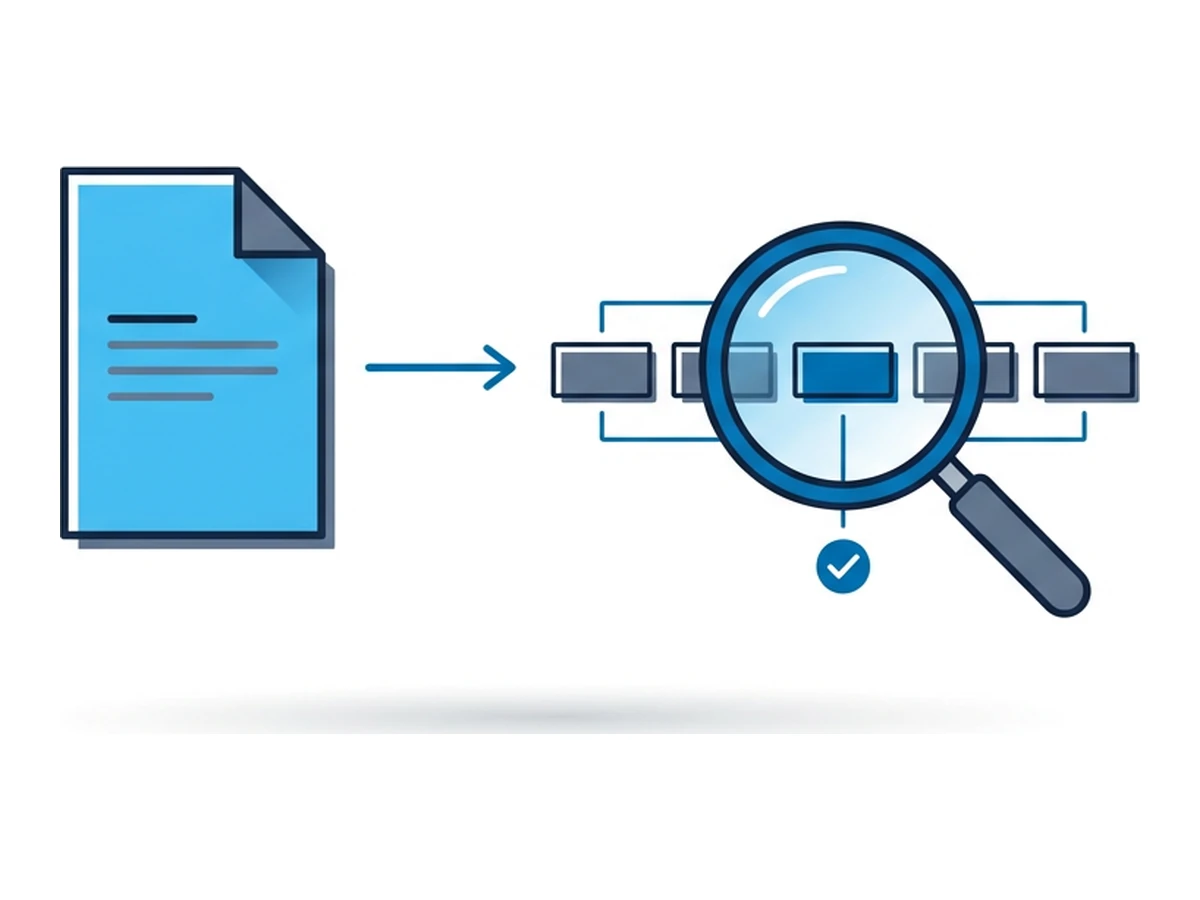
Antivirus has long helped protect personal and managed devices. Current products combine local and cloud signals, so treating them as simple hash scanners misstates their capabilities. Three detection methods explain both their value and their limits. Microsoft's Defender Antivirus documentation describes behavior monitoring and analysis of fileless and in-memory activity.
Known-threat detection uses signatures, patterns, reputation, and other indicators to recognize malicious files and behavior. A changed file hash may defeat one exact match, but it does not make a threat invisible to every other detection method.
Heuristic and behavior analysis looks for suspicious properties and actions rather than waiting for an exact match. It can detect unfamiliar threats, including some script and memory-based activity. The challenge is setting thresholds that catch attacks without interrupting legitimate work.
Cloud and sandbox analysis can use telemetry or samples to examine uncertain files and processes. It is not always a local sandbox. Results depend on configuration, connectivity, evidence, and attacker behavior. Microsoft's cloud protection documentation explains how its client and cloud analysis work together.
These methods work best as part of a managed system: updates, alert review, application controls, and response plans matter. No detector sees every attack in time, and some harmful actions, such as entering credentials into a phishing page, do not need malware on the device.
Where detection has limits
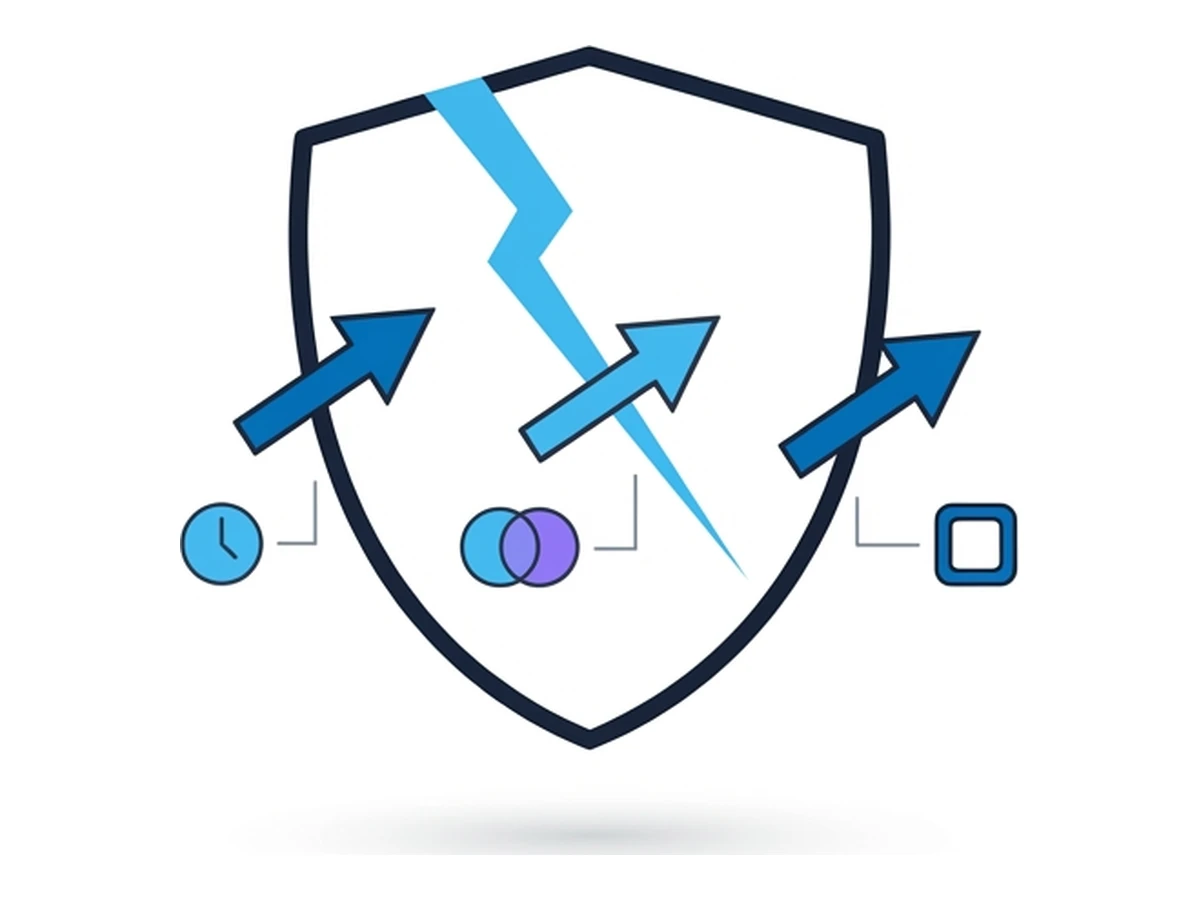
Attackers can exploit software flaws, abuse legitimate tools, or deceive a person without installing a file at all. None of these makes antivirus useless. They do show why detection must be paired with patching, identity protection, and a response plan.
Vulnerabilities and patch timing. A zero-day is exploited before a defender has an available fix; an N-day has a known fix that has not reached every affected system. Antivirus may detect parts of an exploit chain, but cannot be the only plan for an unpatched browser. Inventory, prompt updates, and restricted privileges reduce the window. CISA's ransomware guide puts patching alongside antivirus and EDR.
Changing file content. Attackers can alter packaging or code so that each file has a different hash. This weakens exact-hash matching, but modern products also examine patterns, reputation, behavior, and cloud signals. The right question is whether those layers are configured, monitored, and tested against the threats your organization actually faces.
Abuse of legitimate tools. An attacker may use a built-in interpreter such as PowerShell rather than deliver a new executable. MITRE documents this technique. Some activity can stay in memory, but endpoint tools may still detect suspicious behavior. Restricting privileges and monitoring commands remain important.
A fake sign-in page, a harmful attachment, and a browser exploit need different controls. Training helps people notice unusual requests; phishing-resistant sign-in reduces credential theft; safe inspection procedures reduce unnecessary exposure. Detection continues to matter throughout.
The routes an attack can take
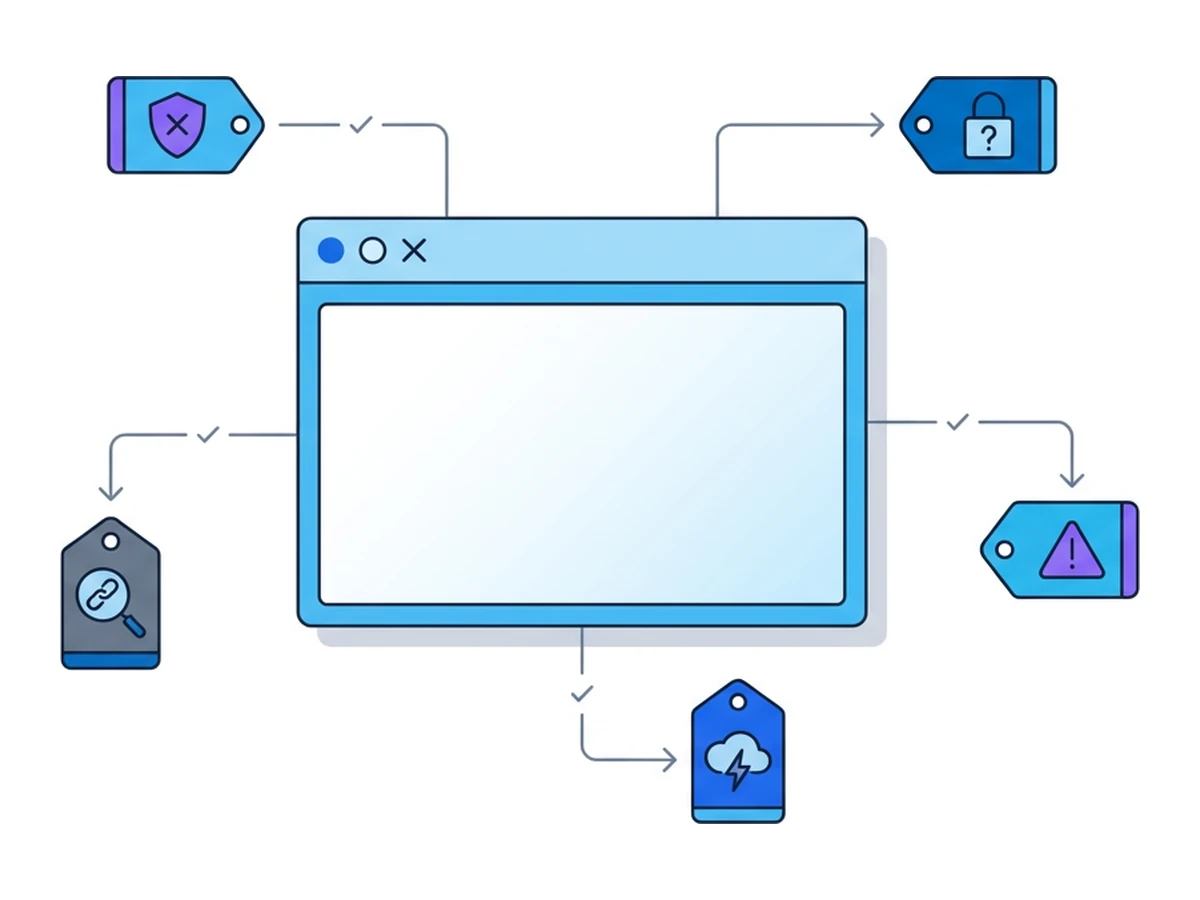
The browser is a common place to encounter suspicious links, deceptive pages, and downloads. It is not the universal starting point for malware. CISA also identifies compromised credentials, exposed services, and existing malware as routes into ransomware incidents. Mapping entry paths prevents a web-only plan from leaving other assets unprotected.
Known-threat and cloud analysis can block many malicious downloads.
Phishing and stolen credentials need identity controls beyond malware scanning.
Browser and operating-system updates close known exploit paths.
Tested backups and response plans limit damage after a breach.
These layers complement one another. CISA recommends updated antivirus, EDR or application controls, strong sign-in, patching, and tested backups. Remote browser isolation addresses a narrower problem: where a website's code runs during browsing.
What remote isolation changes
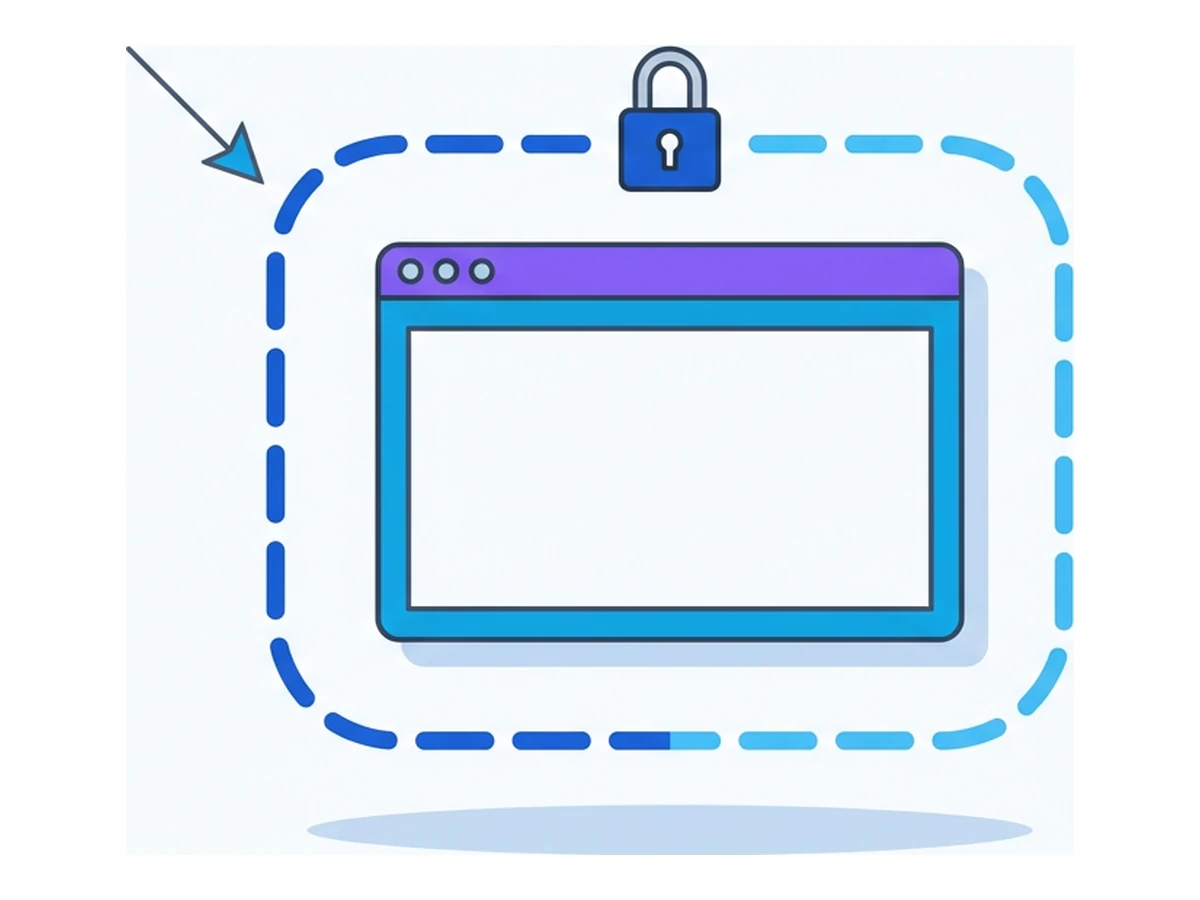
Endpoint protection observes activity on a device. Remote browser isolation moves website execution to another environment. CISA's browser security guidance describes the separation as one possible control, alongside browser hardening and other defenses.
Four boundaries matter. Remote execution means page scripts run in the remote browser. The local viewer still processes the stream and sends your input. Session state can be temporary, while an eligible Browser.lol saved profile deliberately retains cookies and history. Closing the viewer tab does not itself end the session.
Transfer paths include clipboard, uploads, and downloads. A file moved to the local device needs the usual checks before opening.Identity and account access remain exposed to phishing: a person can still type a password into a fake page. Remote browsing does not certify a site or make a zero-day exploit impossible.
Use isolation where the cost of running a page on a usual endpoint is high. Keep endpoint protection, EDR where appropriate, browser updates, access controls, and backups. A remote session can reduce one form of exposure; it does not replace detection, incident response, or careful handling of data that leaves the remote environment.
An illustrative incident review
Consider a hypothetical organization whose employee opens a convincing invoice link. The first task after an incident is to establish what actually happened, rather than assume that a missed antivirus alert explains every later step.
The review should separate the initial access route from the later damage. Was a credential entered into a fake page? Did an attachment run? Was a browser flaw exploited? Which account permissions, shared drives, or missing alerts let the attacker advance? Check mail and endpoint records, application logs, and affected account sessions. The answers determine whether isolation, identity controls, or another change would have mattered.
A reasonable pilot might keep antivirus and EDR in place, strengthen sign-in and backup practices, and give analysts a remote browser for unfamiliar pages. Record which tasks it helps and where users still download files or enter credentials. Browser.lol provides sessions for that work; it does not automatically route mail attachments, enforce organization-wide browsing policy, or prove that future incidents will be contained.
A 30-day action plan
Use a short pilot to find where remote browsing helps, measure its limits, and keep the rest of the security program in place.
Week 1: Assess and communicate
Review recent incidents and near misses, including phishing, malicious downloads, and credential theft. Separate browser-originated events from other entry paths. Identify which teams regularly open unfamiliar links and what controls already protect them.
Week 2: Launch a pilot
Give a small group an explicit process for opening unfamiliar websites in a remote browser. Test real tasks, including screenshots, sign-in prompts, clipboard use, and downloads. Record usability issues and any data that crosses back to the local device.
Week 3: Integrate and automate
Document who may start sessions, what information may be entered, and how sessions are ended. If your account has API or SSO access, evaluate those documented interfaces before building an integration. Do not assume automatic mail-attachment routing, SIEM streaming, or ticketing links are built in. Update the incident-response runbook with the actual steps the team tested.
Week 4: Expand coverage
Decide whether the pilot justifies wider use. Train the next group with a live walkthrough or materials your team creates. Track practical measures such as task completion, policy exceptions, downloads, and response findings; avoid claiming prevented incidents that cannot be observed.
Build defenses that work together
Antivirus remains a useful layer, especially when it is current, configured, and monitored. EDR, timely updates, strong sign-in, application controls, and tested backups address risks it cannot resolve alone. CISA's ransomware guidance recommends that combination, rather than replacing endpoint protection with one new tool.
Remote browser isolation can move the execution of an unfamiliar page away from a usual endpoint. It still leaves the viewer, transferred files, credentials, and account actions to manage. Test that boundary against your workflow, then keep detection and response ready for everything outside it.
Need an isolated session for your next task?
Open an isolated desktop browser and get started in your browser.
Start a SessionNo browser installation required • Features vary by plan