
A library PC or borrowed laptop may be the only device available when you need an account. It may also retain browser data or run software you cannot inspect. The safest choice for a sensitive account is a device you control. When that is not possible, know which precautions reduce leftover data and which risks remain.
A shared computer is not necessarily compromised, but you cannot rely on its configuration. A password, one-time code, or authenticated session can be exposed in different ways. This guide separates those risks and explains where private windows, passkeys, sign-out, and remote browsing help. None makes an untrusted local device trustworthy.
What can remain or be observed
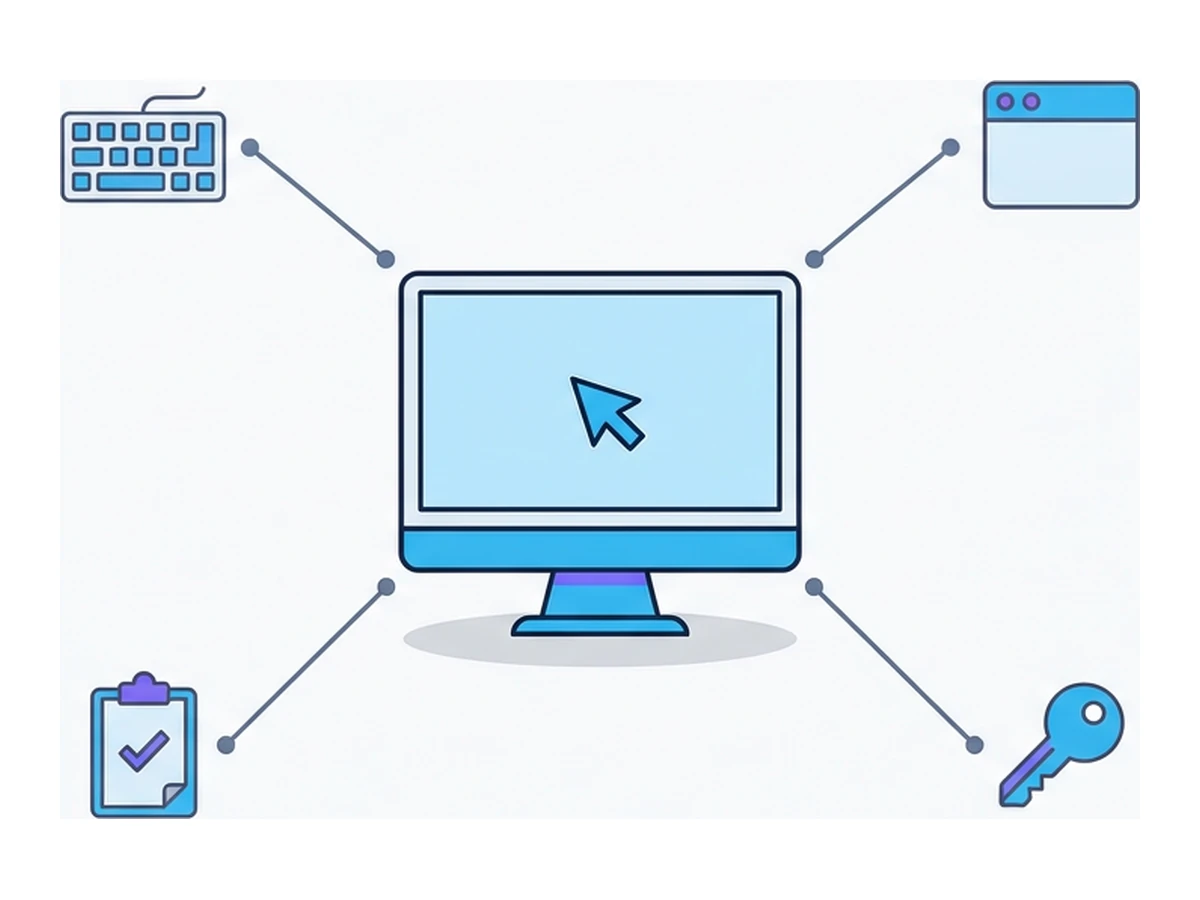
Input. A compromised local device could record keystrokes or screen activity, including passwords and one-time codes. CISA has warned about keylogger malware found on hotel business-center computers. That is a possible risk, not a claim that every public terminal has a keylogger. A remote browser cannot hide what you type from the local operating system.
Saved credentials. If you accept a browser prompt to save a password on someone else's device, it may become available through that browser profile or its password manager. The exact protections depend on the browser and operating-system account. Decline save prompts, and avoid signing your password manager or browser profile into a machine you do not control.
Sessions and local data. Sites use cookies or other tokens to keep an account signed in. Logging out should invalidate the site's session, but implementations differ, and a stolen token may remain usable until the service revokes it. OWASP explains why a stolen session cookie can bypass a strong login. A private window reduces retained browser history and site data when closed; it does not protect an active session on a compromised device.
Clipboard and downloads. Anything copied or downloaded passes through the local device and may be retained by its software or users. Private browsing does not automatically erase downloaded files: Chrome says downloads and bookmarks remain after Incognito. Avoid copying secrets or saving sensitive files on a device you cannot assess.
Three scenarios, three risks
A public kiosk. Many people use it, and you cannot verify the software or earlier users' actions. It might be well managed, but a sensitive sign-in exposes you to risks you cannot inspect. If you can, wait for your own device. If the task cannot wait, minimize what you access and plan to review the account later from a trusted device.
A friend's laptop. Trusting the owner does not tell you how the browser is configured. A normal profile may already have extensions, saved accounts, and autofill. Ask for a guest or private window, decline password-save prompts, sign out, close all private windows, and remove any files you downloaded. These steps reduce residue, not the risk of malware already on the laptop.
A managed work laptop. An employer may configure browser policies, network inspection, or device monitoring. That does not mean it records every keystroke, but personal browsing may be visible under the organization's policy. Use your own device and connection for personal accounts when possible.
What each precaution can do
| Measure | What it helps with | What it does not fix |
|---|---|---|
| Guest or private window | Reduces local browser history and site data after all such windows close | Cannot protect active input or erase downloads |
| Passkey on your own device, if supported | Avoids typing a reusable password into the guest keyboard | The signed-in session on the guest computer can still be abused |
| Sign out and close the window | Limits later use of that browser session when the service invalidates it | Cannot undo information already captured |
| Review sessions from a trusted device | Lets you revoke access that may still be active | Does not remove copies of information already taken |
| Hardware security key | Can make sign-in resistant to phishing when the service supports it | Does not make a compromised authenticated session safe |
| Remote browser | Runs the visited page away from the local device | Local input and the connection to the remote service remain exposed to a compromised host |
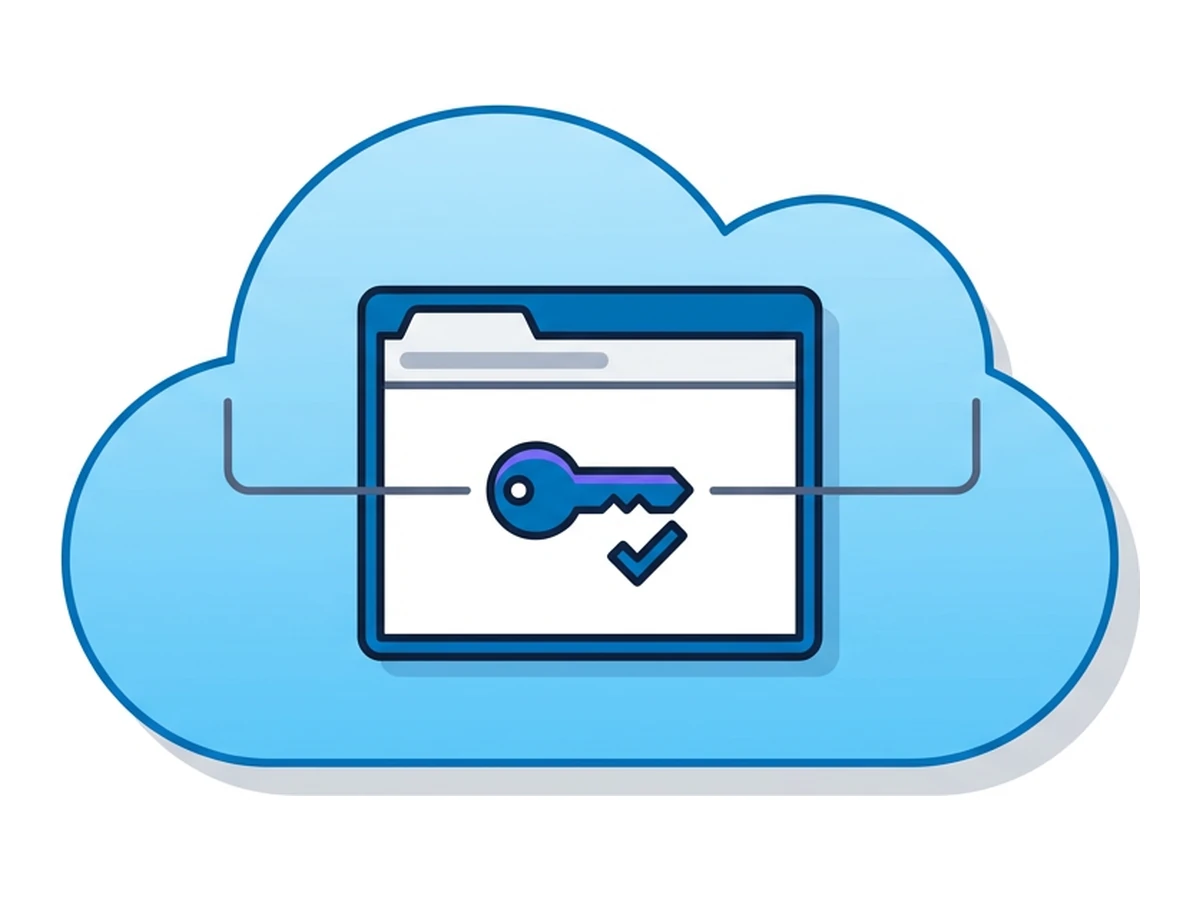
A passkey or security key can protect the authentication step without making the resulting session immune to theft. FIDO describes cross-device passkey sign-in, but the site, browser, and device must support it. Never assume a security key connected to a guest computer will work through a remote browser. For more on stolen sessions, see Session Hijacking.
Google recommends a guest or private window on a device that is not yours. This reduces local browser residue; it is not a guarantee against a compromised keyboard, screen, operating system, or network.
What a remote browser changes
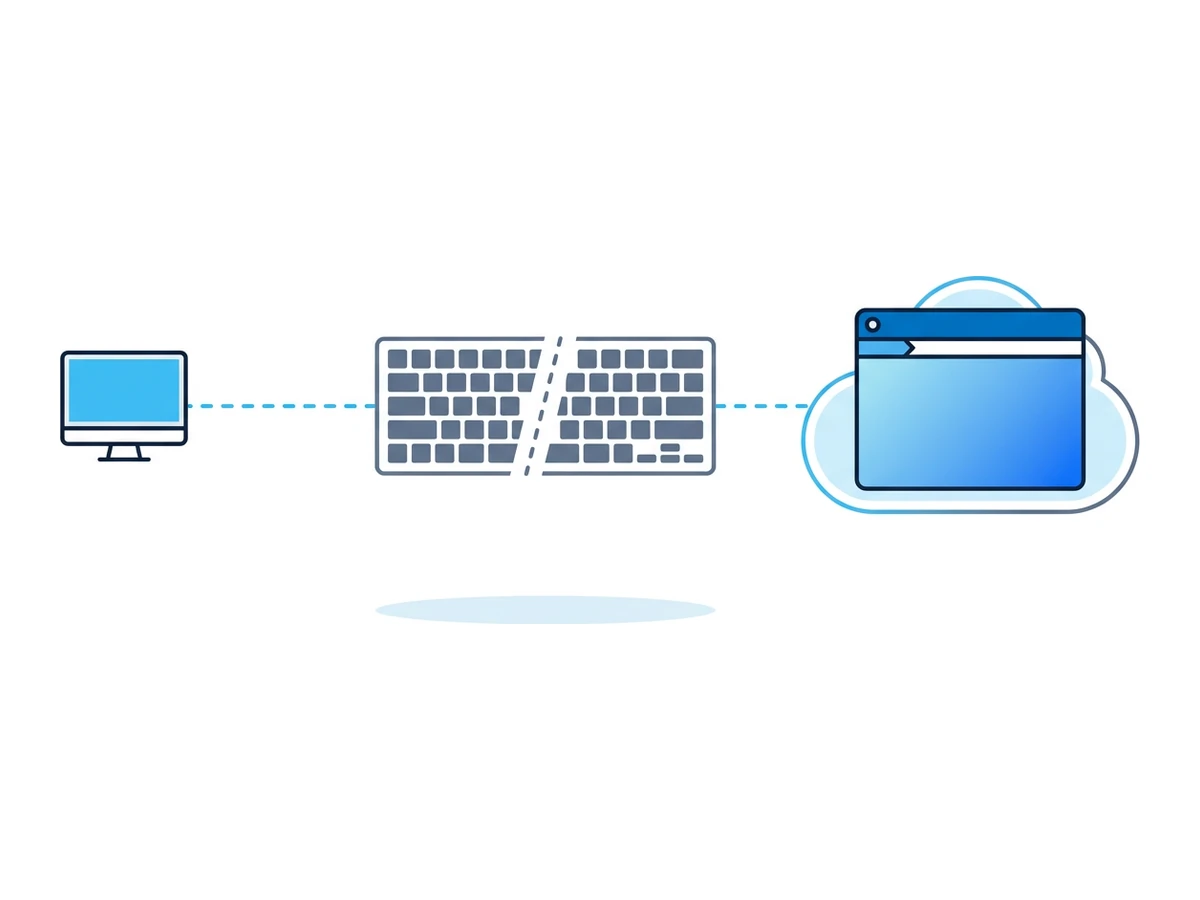
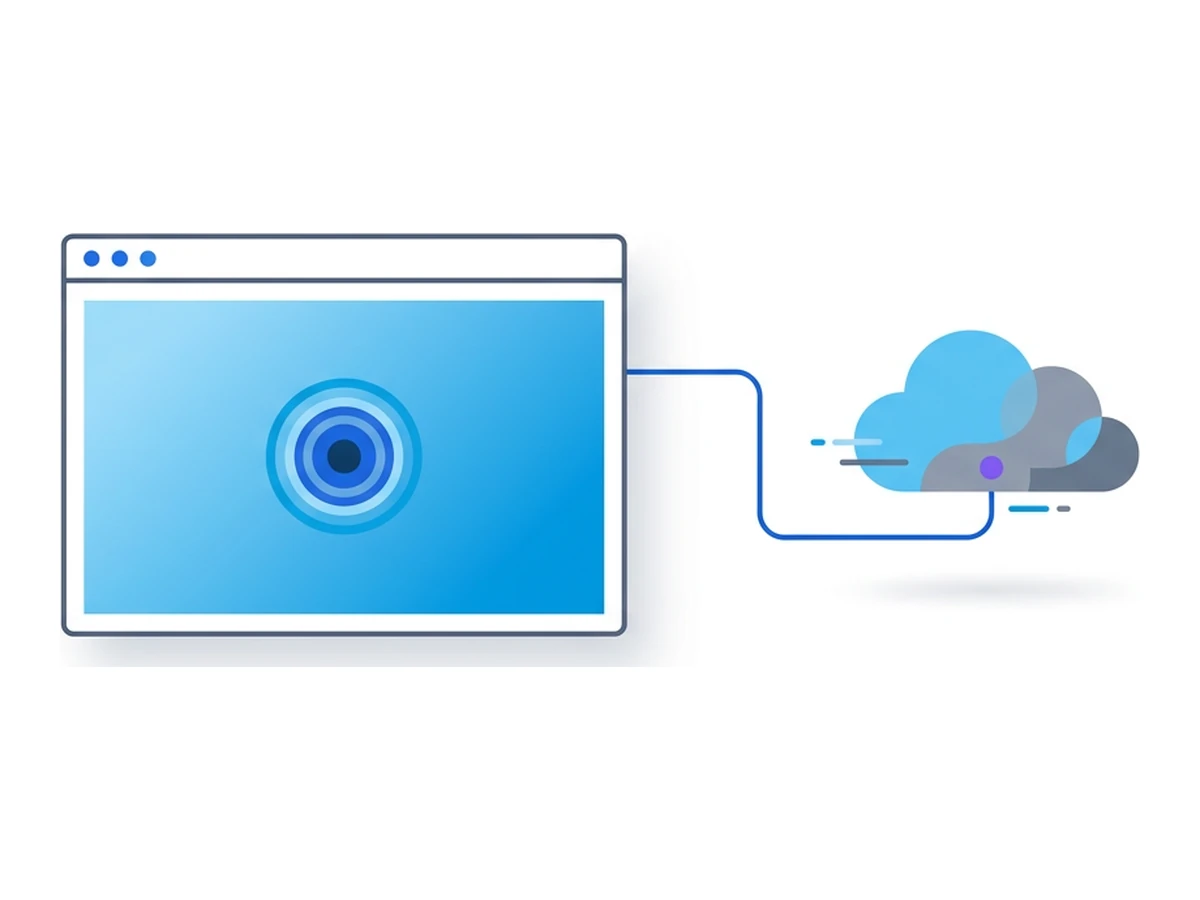
A remote browser executes the visited page on another machine and streams the view to the local browser. In Browser.lol, the site you visit and its session cookies are handled by the remote browser. This helps separate the visited page from the shared device, but it does not remove the shared device from the path. Keystrokes and pointer events start there before they are sent to the remote session. Malware or someone watching that device could still observe passwords, codes, and on-screen account information.
Remote browsing can keep the visited site's ordinary browser cookie out of the local browser profile. The local device still stores or transmits data for the Browser.lol connection, and its history may show access to Browser.lol. A saved remote profile can retain browsing state; a temporary session has different retention behavior. The destination site and service may also keep their own records.
For inspecting an unfamiliar page, that separation can be useful. For signing into a sensitive account from a device you do not trust, it is not a substitute for using your own device. Never enter a password-manager master password on a guest computer merely because the destination browser is remote.
A safer decision process
If you cannot use your own device, reduce what you expose and plan a follow-up from a trusted one.
- 1
First, decide whether the sign-in can wait
Prefer your own phone or computer for banking, email, password managers, and other sensitive accounts. If the device is visibly misconfigured or you have reason to suspect tampering, do not sign in there. - 2
Use a separate browser session
If access is necessary, open a guest or private window and go directly to the service's known address. Decline password-save prompts, avoid downloading sensitive files, and do not open your password-manager vault on the shared machine. - 3
Choose the strongest supported sign-in
A passkey on your own phone may let you approve a cross-device sign-in without typing a reusable password on the guest keyboard. Use it only if the site and browser support that flow, and verify the address and prompt. MFA helps at sign-in but cannot protect a session that is already compromised. A remote browser can help inspect unfamiliar content; it does not make guest-device input safe. - 4
Sign out, then review access later
Sign out of the account, close every guest or private window, and remove downloaded files. If you used a remote browser, end that session too. From your own device, check recent account activity and revoke any sessions you do not recognize. Google documents how to review and sign out of account sessions.
Need an isolated session for your next task?
Open an isolated desktop browser and get started in your browser.
Start a SessionNo browser installation required • Features vary by plan